The Insta360 Flow 2 gimbal is positioned perfectly vertical. Why does the horizon tilt like this when filming? Both to the right and to the left. When the gimbal rotates, it seems to follow a downward circle.
Does this happen to everyone? Judging by the videos I’ve found online, I’d say no!
Is the gimbal at ground level? I had this problem with OnceSport Autocam. It has to be pitched higher so when it pans, footage rotates so the players look upright.
I suspect this was caused by the gimbal mode you were using. It looked like the roll angle changed as the gimbal panned from left to right. For the Comitok Mogo, their developers recommended that the gimbal mode should be set to HF (Horizontal Follow) when DockKit is active. I haven’t been able to get a recommendation from Insta360, but you can try Auto Mode or Pan Follow Mode to see if either makes a difference.
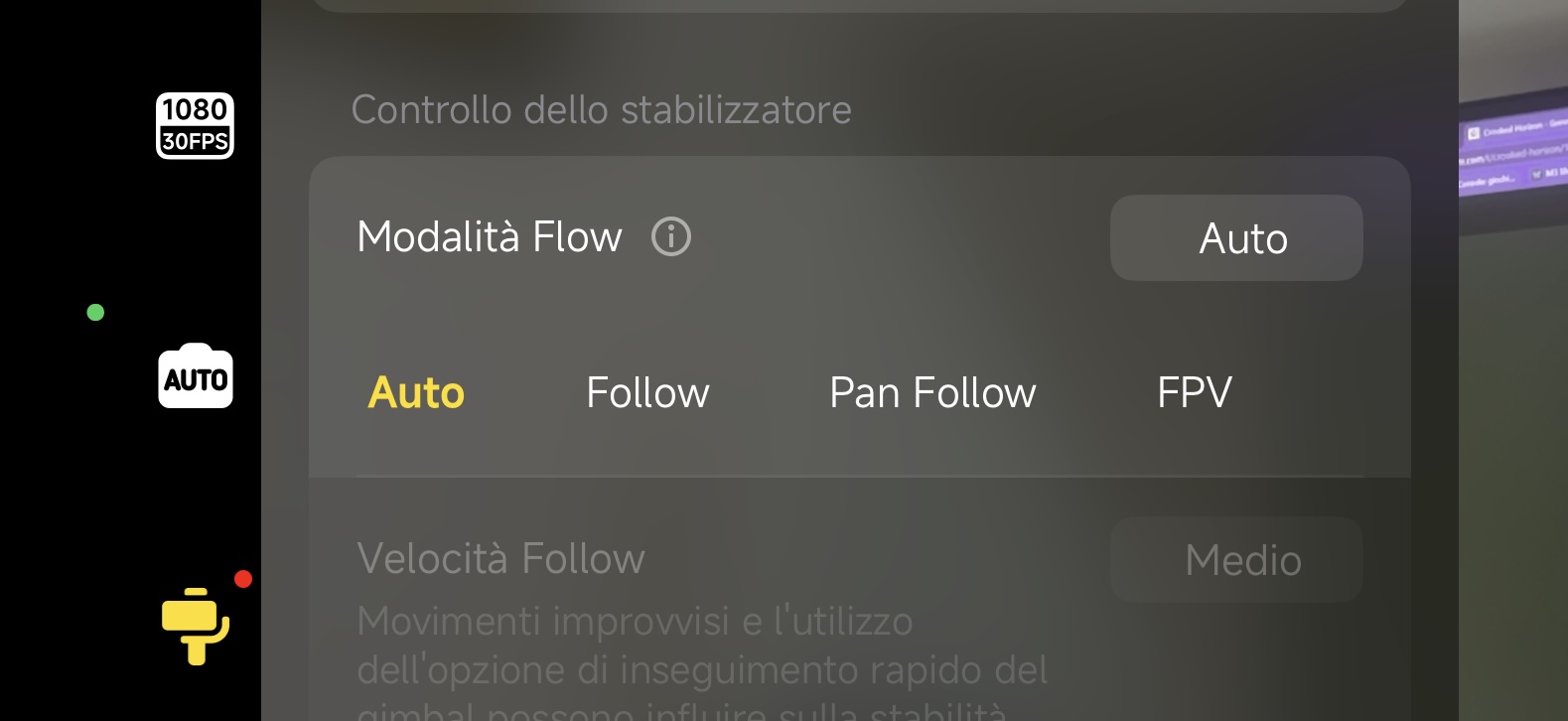
You can set the mode directly on the gimbal. Press the M button to cycle through the modes. I’m not sure whether the settings in the Insta360 app affect the mode when the gimbal is controlled via DockKit.
Also, you don’t need to wait until a game to test this. FoloCam will pan left or right even when no ball or players are detected, so you can easily check whether the roll angle changes as it pans.
I tried the different modes by pressing M—the one that lights up the LED at the top of the grip (I think it’s Follow F mode)—and it keeps the iPhone horizontal. Thanks
Gimbal Modes
When Flow 2 Pro is turned on, you can choose from five gimbal modes: Auto (on by default), Follow, Pan Follow, FPV and Lock Mode.
- Auto Mode (AUTO): Beginner-friendly mode that automatically adjusts tilt and pan axis settings based on your movements (e.g., running vs stationary), making it easier to shoot stable videos.
- Follow Mode (F): The tilt and pan axes follow the movement of the handle, and tracking is more sensitive than Auto Mode. Suitable for vertical movements from a view to a subject and tilt and pan movements.
- Pan Follow Mode (PF): The pan axis follows the movement of the handle while the tilt and roll axes are locked. Suitable for shooting horizontally or around a subject with a locked horizon.
- FPV Mode (FPV): The gimbal can rotate freely to follow the movements of the handle in any direction, making it suitable for a wider range of creative shots. Turn the Zoom Wheel to control the roll axis and spin the phone.
- Lock Mode (L): Press and hold the Trigger Button to lock all three axes, great for follow shots and hyperlapses. Release the Trigger Button to exit Lock Mode. The phone screen does not follow the rotation of the gimbal handle and is locked. It is suitable for follow shots, long-distance movements or shots that need to keep a subject centered for a long time. In this mode, the three-axis motors are locked, and the mobile phone remains unchanged in its movement.
Switch on Active+ Mode for fast-moving scenes. It provides a faster response speed in any of the four gimbal modes on the Touch Panel.
Press the Trigger Button once, then immediately press it again and hold to enable Active+. The indicator lights blink in the current gimbal mode. Release the Trigger Button again to exit.
Same problem I think my first videos were in auto mode - I will also try all the different modes and report back.
If the top LED on the rim is lit, the device is in AUTO mode; the right LED indicates FOLLOW mode; the bottom LED indicates PAN FOLLOW mode; and the left LED indicates FVP mode.
It cost me two gols this week; I’ll try the fast mode to see if it helps.